

While a good torrenting VPN will help keep you safe when downloading, it’s not foolproof. And the biggest risk comes from drops in your VPN connection.
A kill switch can mitigate this risk, but it’s a good idea to go one step further and actually bind your VPN to your torrent client, so it only allows traffic when connected to your VPN.
Depending on your torrent client, the steps for doing this are a little different – and some torrent clients are better for this than others.
Keep reading to find out how to bind your VPN to a torrent client, including qBittorrent, uTorrent, Deluge, and others.
[+] 'Bind VPN to qBittorrent & Other Torrent Client Software'
How to Bind Your VPN to qBittorrent
We’ll start with qBittorrent, since not only is it arguably the best torrent client, it has the best VPN binding support.
1. Connect your VPN.
2. In qBittorrent, go to Tools > Options > Advanced.
3. Look for the Network Interface option and open the drop down menu.
4. Ideally, you’ll see the name of your VPN in the list of options. Simply select it and hit Apply.

If you don’t see your VPN listed, try closing and re-opening qBittorrent. And if you still don’t see it, try disconnecting and re-connecting your VPN to see which option disappears and reappears on the list when you do so. That one is your VPN.
5. Once you’ve got everything set up, restart qBittorrent to make sure the changes take effect.
Bind uTorrent / BitTorrent to Your VPN
Unfortunately, the uTorrent client doesn’t make things quite as easy, which is just one of many reasons that qBittorrent is better.
However, it is still possible to bind uTorrent (and BitTorrent) to a VPN using these steps:
1. First, you’ll need to know your local IP address. There are a few ways to do this, but we’re going to use the command prompt.
- In Windows, search for ‘cmd’ and open the program
- While connected to your VPN, type ‘ipconfig’ and hit enter
- You’re looking for your VPN adapter and the IPv4 address listed under it
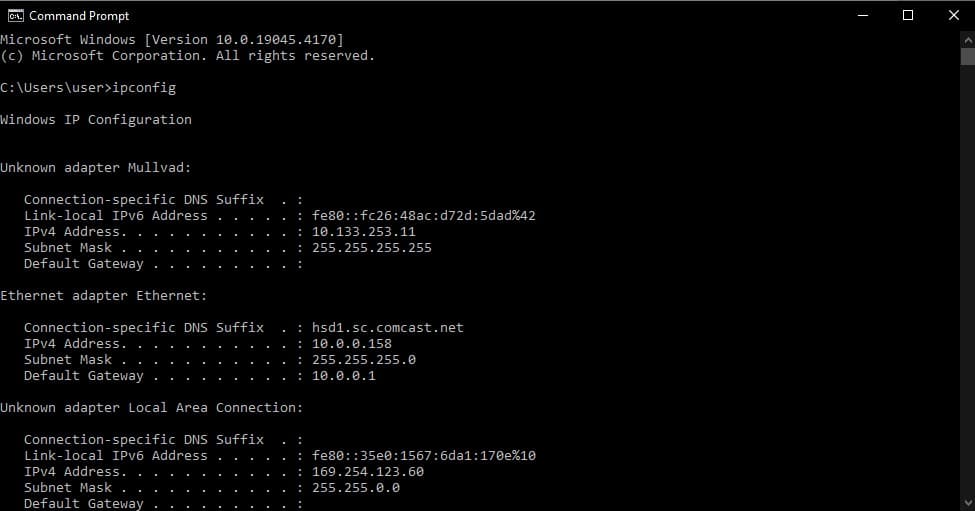
2. Once you’ve found your IP, copy it (or write it down).
3. Next, open uTorrent and go to Options > Preferences > Advanced.
4. You’re looking for net.bind_ip and net.outgoing_ip in the list of options. Alternatively, you can enter “ip” in the Filter bar to make them easier to find.

5. Once you’ve found them, paste your IP address into the Value box and hit Set. Do this for both net.bind_ip and net.outgoing_ip.
Warning: This IP address can and often will change when you do certain actions, like reboot your computer. When this happens, you’ll need to find the new IP address and re-bind it to uTorrent.
Yes, really. This is definitely a pain, which is why it’s easier to use a torrent client that allows you to bind directly to your VPN’s network interface, like qBittorrent.
How to Bind Your VPN to Deluge
The setup for Deluge is quite similar to uTorrent.
1. You need your local IP address. If you don’t know it, open the Command Prompt in Windows (cmd), type ‘ipconfig’ while connected to your VPN, and look for the IPv4 address listed under your VPN’s adapter.
Hint: You can find slightly more detailed instructions in the uTorrent section above.
2. Copy this IP address.
3. In Deluge, go to Edit > Preferences > Network and find Outgoing Interface.

4. Paste your IP address into this box.
Warning: Your IP address may change any time you reboot your computer, at which point you’ll need to re-bind the new IP address in Deluge.
To avoid this, use a different client, like qBittorrent.
Binding a VPN to Transmission
Unfortunately, Transmission doesn’t provide the option to bind your VPN through any of the methods we’ve covered. It may still be possible to make it work, but that’s a bit beyond the scope of this article.
Instead, we’d suggest trying one of the other clients, like qBittorrent.
How to Bind Your VPN to Tixati
Tixati is actually one of the easiest torrent clients to bind to your VPN.
1. Go to Settings > Network > Connections.

2. Look for ‘Local IPv4 address or interface’.
3. Select the ‘...’ to open the drop down list and then select your VPN network interface from this list.
4. You can also do the same thing for ‘Local IPv6 address or interface’.
Note: If you don’t see your VPN in the drop down list, try connecting to it and restart Tixati.
VPN Binding Wrap-Up
So, by now, you not only know some of the best torrent clients for binding to a VPN, you also know how to set it up.
If you’re still not sure how to bind your VPN to your particular torrent client, feel free to drop us a line in the comments!